TRIM RAW sources in Resolve 20.2.3
1. Editorial: export two different XML/AAF and Offline preview files from Premiere/Avid/FinalCut:
- Original XML/AAF: Approved original edit and H.264/ProRess422proxy preview file.
- aka "Clean" XML/AAF: Duplicate your sequence\timeline and then call it clean version and clean-up it from nested sequences, effects, ramp speed/reverse speed. If speed changes is simple linear, keep it and export H.264/ProRess422proxy preview file. Please note: If "clean" xml has no difference with "original" cut, please work with "original" xml only
- Please burn-in metadata in image: Record timecode, source file name and source timecode.
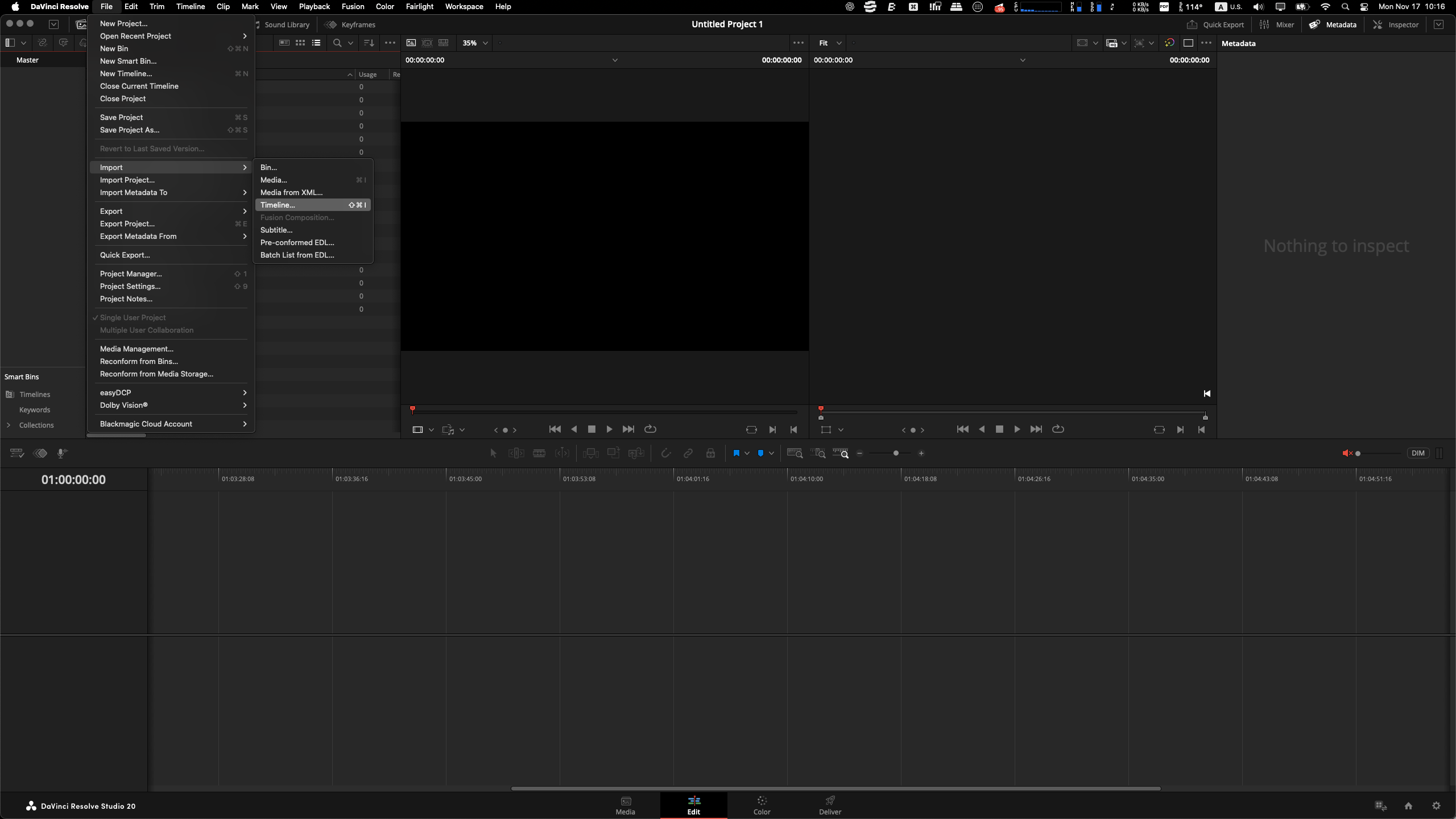
2. Open Davinci Resolve (see screenshots below)
- Please check Project settings - Setup frame rate and resolution
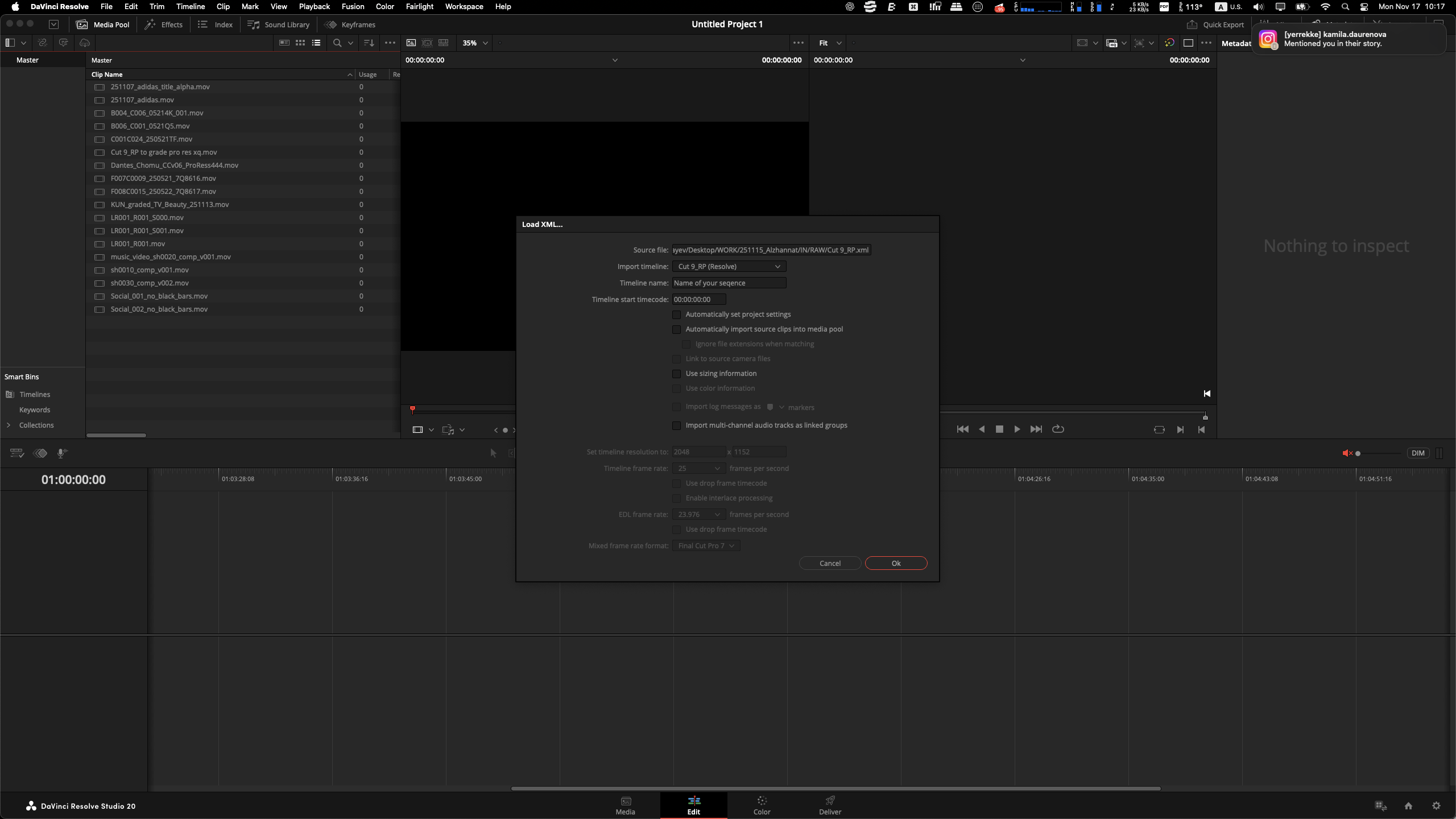
- Import RAW sources into Media Page by drag and drop or within Resolve - (Media Page)
- Import XML and conform raw sources
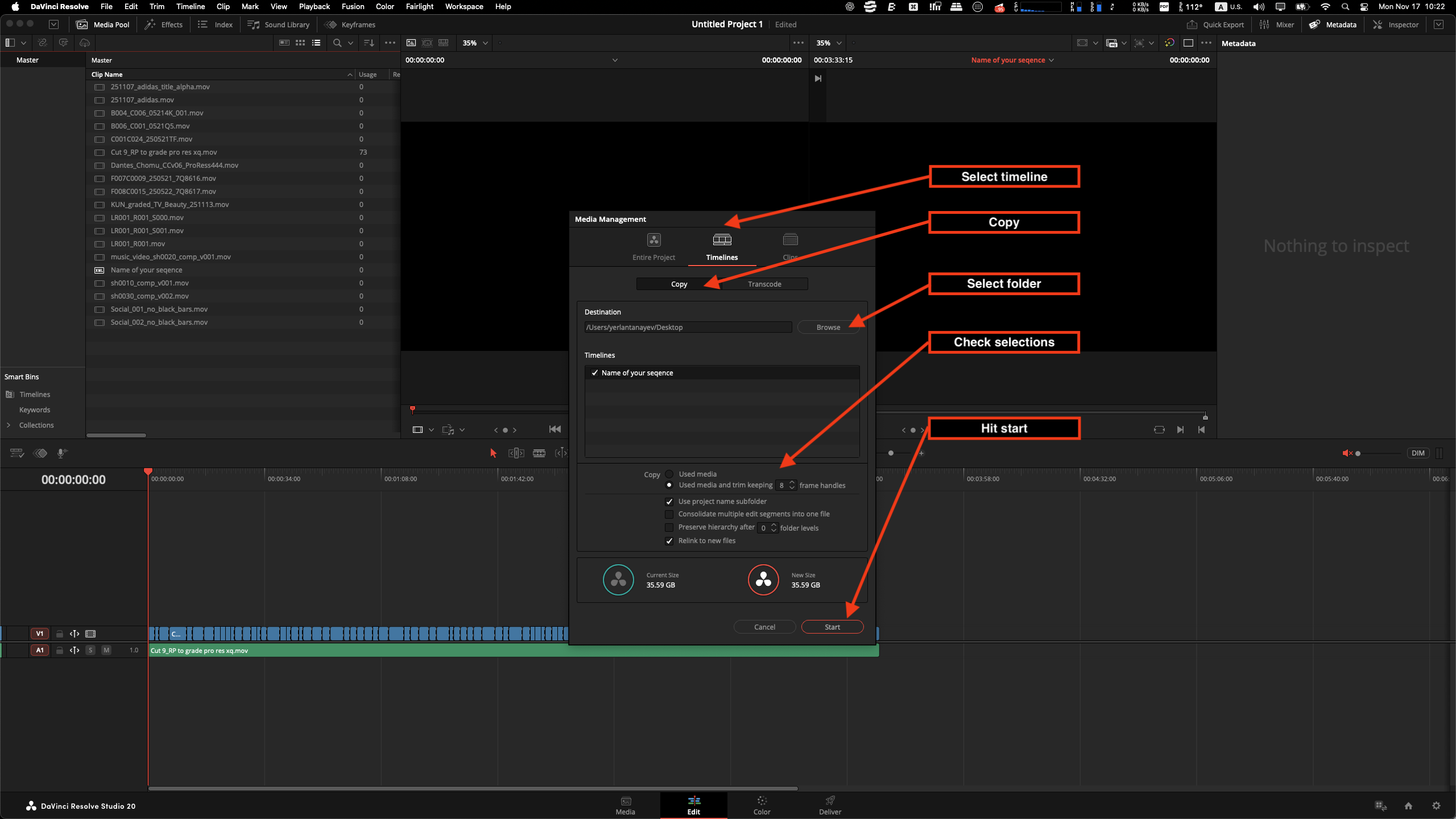
- Consolidate and trim them into preferred folder in media management pop-up window
Upload them to global servers - myairbridge.com | google.drive | dropbox | wetransfer Local FTP servers have very low outgoing speed for abroad downloading
below step by step stills